Any running app
Garmin, Nike Run Club, Apple Fitness — and more
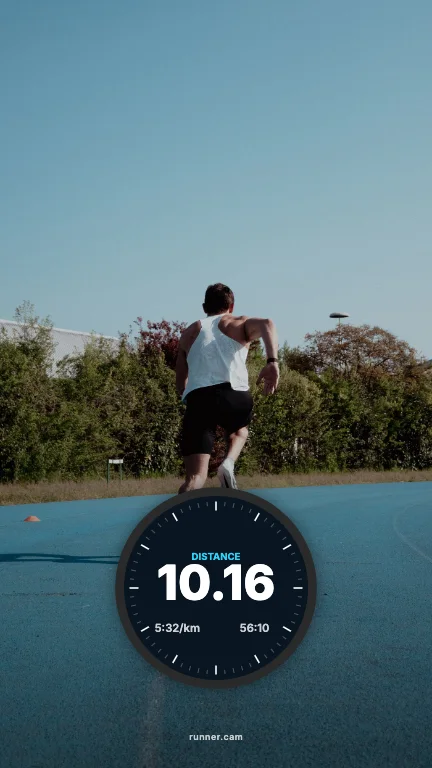
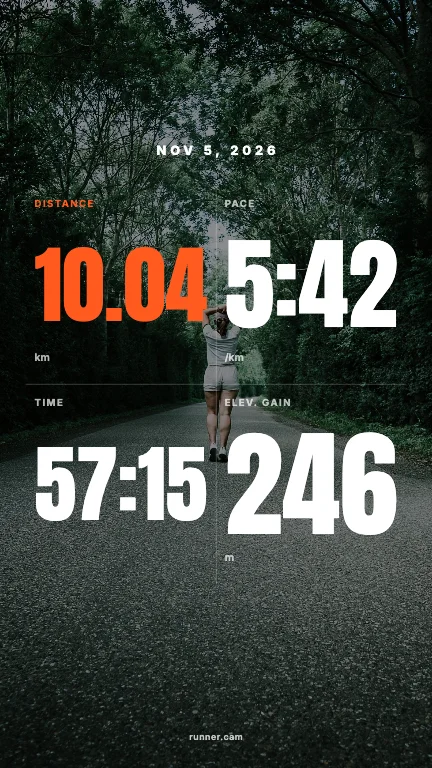
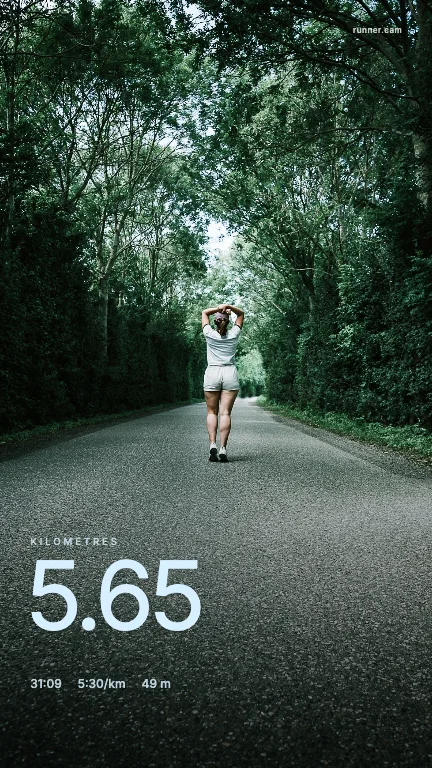
Runner Cam doesn't connect to your accounts. It reads the image your app already creates — a share image, a transparent overlay or a simple screenshot. So it works with almost any running app.
Garmin Connect
Open the activity and tap Share. Newer versions of Garmin Connect offer transparent overlays in several formats — save one to your camera roll. On older versions, take a screenshot of the activity summary.
Nike Run Club
Go to the Activity tab, open the run, tap the three dots and then Share. Save the image of your route and stats — or simply screenshot the run summary.
Apple Fitness / Apple Watch
Open the workout in the Fitness app on your iPhone and take a screenshot of the workout details (distance, time, pace, route). Runner Cam reads the values from it.
Strava, Runna, Coros and others
If the app can share an image of your run, use that. If not, a screenshot of the summary is enough. Runner Cam reads distance, time, pace, elevation, heart rate and the route line — and you can correct anything before you share.
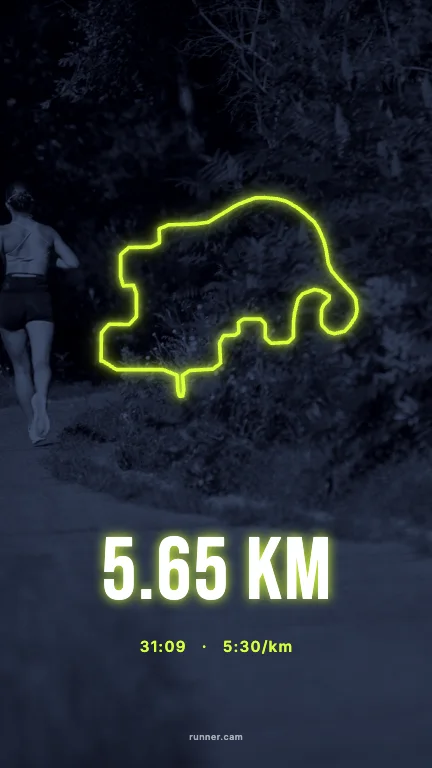
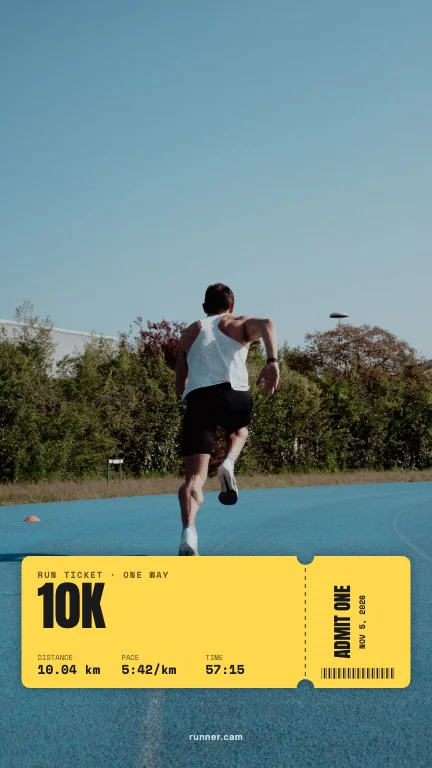
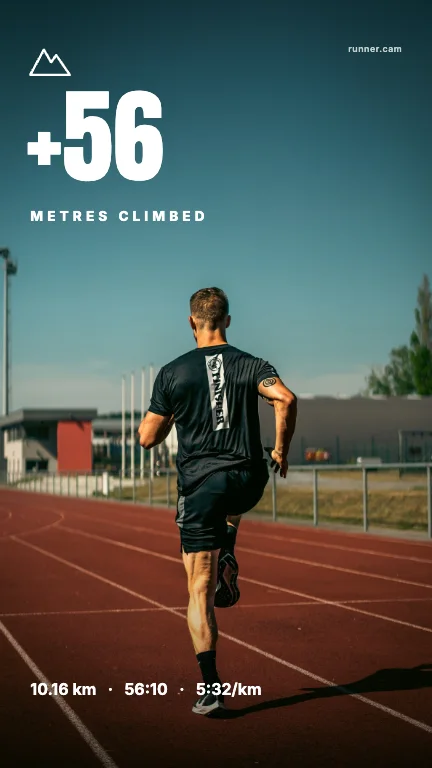
- 01Upload your run overlay or a screenshot of the activity. Runner Cam reads distance, time, pace, elevation, heart rate and the route.
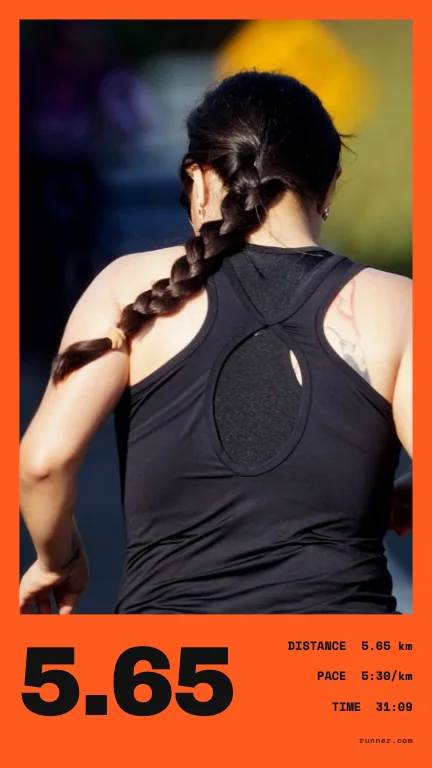
- 02Pick a photo of you. We cut you out, so text can sit behind you.
- 03Browse 100 layouts for Story (9:16) and Feed (4:5), pick a colour, share or save.
FAQ
- Do I need to connect my Garmin or Apple account?
- No. Runner Cam never logs into anything — it only reads the image you upload.
- What if a value is read wrong?
- You can edit every value before creating your posts.
Runner Cam is an independent tool and is not affiliated with or endorsed by Strava, Garmin, Nike, Apple or any other app mentioned.